View Team Members With Specific Roles

  • OVERVIEW

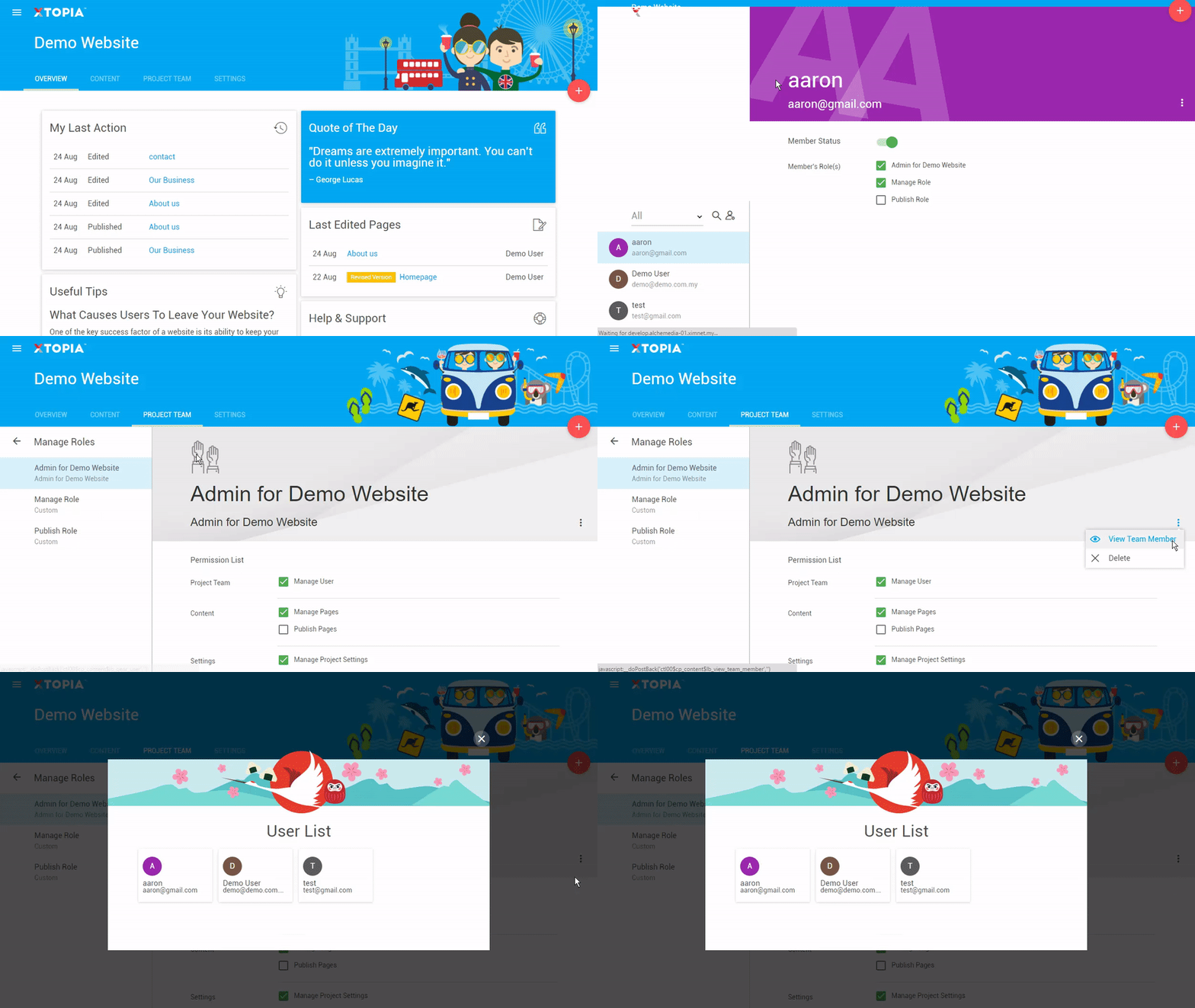
    Track your team members’ roles in a list.

    SUMMARY

    To find out who are listed in each role in your project, follow the steps below:

    STEP BY STEP

    1. Choose your project (this step is only available for users with multiple projects).
    2. Click on “Project Team” on the dashboard navigation.
    3. Hover on “Manage Role” icon on left panel and click in.
    4. Select the role you want to view on the left panel.
    5. Hover on the eclipse button and select View Team Member.


    Note: You are not allowed to edit your member list in this action.

  • OVERVIEW

    Track your team members’ roles in a list.

    SUMMARY

    To find out who are listed in each role in your project, follow the steps below:

    STEP BY STEP

    1. Choose your project (this step is only available for users with multiple projects).
    2. Click on “Settings” on the dashboard navigation.
    3. Click on "Users".
    4. Click on “Manage Role” icon on left panel and click in.
    5. Hover on the eclipse button on the left and select View Team Member.


    Note: You are not allowed to edit your member list in this action.

Related articles

let us help you

Can't find what you're looking for?
Ooops!
Generic Popup2